

Unlock Challenges
When a block triggers in Curbox, a pause screen appears. Warning Screen controls what happens on that screen — whether you can get past it, how hard that is, and how long it takes.
You set the challenge inside each App Pause or Short-Form Video group by tapping Configure Warning Screen.
When is this screen shown?
This screen gets triggered when you try accessing an app out of its schedule. For example, if I’ve set the blocking mode to Time based with an allowed schedule between 2 pm and 6 pm every day. This screen won’t show up if I access the app between 2 pm and 9 pm. If I try to access the apps in this group anytime other than the schedule, this screen decides what has to be done.
Choosing a Challenge Type
The Warning Screen Configuration screen has one main setting: the Unlock Challenge dropdown. There are three options.
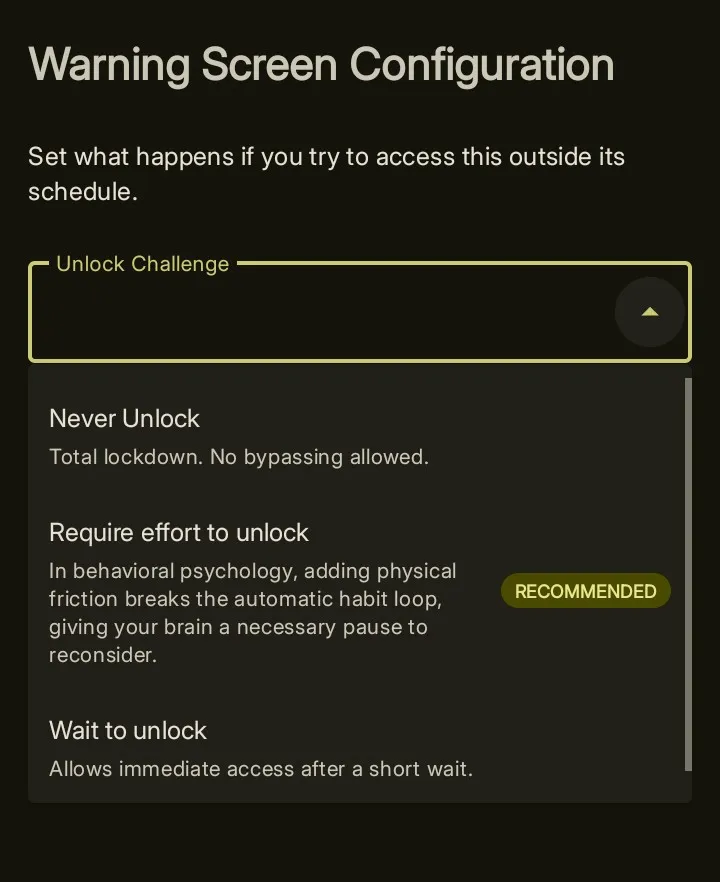
Never Unlock turns the block into a total lockdown. The pause screen shows no way past it.
Use this when you want to make an app completely off-limits with no exceptions — no loopholes, no “just this once.”
Require effort to unlock adds a task you must complete before the proceed button appears. There are three effort types to choose from:
- QR or Barcode Scan — you must scan a specific QR code you set up in advance. Putting the code on a shelf in another room makes it genuinely inconvenient.
- ** NFC **
- ** Adaptive Math **
- Type a Sentence — you must type a sentence exactly as written. The deliberate act of typing creates a natural pause.
- State Your Intent — you must type what you plan to do in the app. Your reason is saved so you can review it later.
Requires no effort to unlock makes you wait before the proceed button appears, but no task is required.
Two timing options are available:
- Fixed time — the wait is always the same number of seconds.
- Dynamic time — the wait changes each time, so you cannot predict how long it will be.
The Delay Timer
Whatever challenge type you choose, you can add a countdown before the challenge even appears. During the countdown, your screen brightens and your phone vibrates — a physical reminder that you are about to make a choice.
Advanced
Limit Unlock Frequency
You can cap how many times you are allowed to proceed through a block within a given time window. Once you hit the cap, the proceed button disappears until the window resets.
Daily Focus Requirement
You can connect a particular focus group with the warning config to replicate a behaviour like “focus for x hours a day to unlock entities”
Custom Message
You can setup a message that appears when you open a blocked entity. Combining this together with delay timer, forces you to think before you mindlessly start scrolling. Examples of good custom messages:
- Are you truly giving up your dreams to scroll 5 mins?
- That 5 mins costs you 100 days in 5 years btw