

Grayscale Filter
Grayscale Filter removes screen colors while a selected app is open. Curbox restores the colors when you leave the app.
Give the permission with Shizuku
Shizuku lets Curbox request the necessary permission without a computer. You usually complete this setup one time.
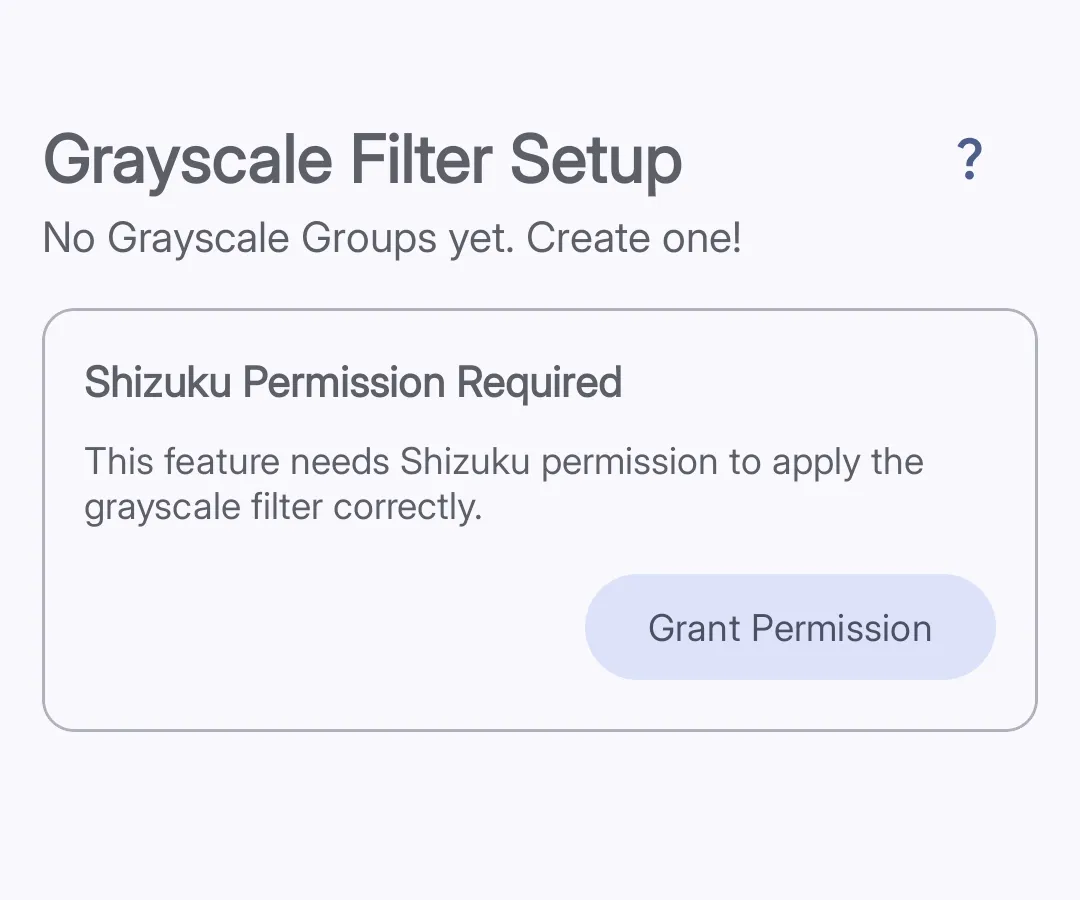 The permission card stays visible until Curbox has the required permission.
-
Install Shizuku Install Shizuku from its official website.
-
Start Shizuku Open Shizuku, and complete its setup procedure. Android 11 and later can use wireless debugging.
-
Open Grayscale Filter In Curbox, tap Reducers. Then, tap Grayscale Filter.
-
Give the permission Tap Grant Permission. Approve the Shizuku request.
Give the permission with ADB
Use this procedure if you do not use Shizuku. ADB is part of the Android SDK Platform Tools.
-
Install the platform tools Download SDK Platform Tools to your computer.
-
Turn on Developer options Open Android Settings. Open About phone, and tap Build number seven times.
-
Turn on USB debugging Open Developer options. Turn on USB debugging.
-
Connect the device Connect the device to the computer with a USB cable. Approve the debugging request on the device.
-
Check the connection Run this command from the platform-tools directory:
Terminal window adb devicesMake sure that the device status is
device. -
Give the permission Run this command:
Terminal window adb shell pm grant neth.iecal.curbox android.permission.WRITE_SECURE_SETTINGS -
Check Curbox Open Reducers, and then open Grayscale Filter. The permission card must not appear.
Create a Grayscale Filter group
-
Create a group Tap the + button on the Grayscale Filter screen.
-
Enter a group name Enter a short name.
-
Select apps Select the apps that Curbox must show in grayscale.
-
Save the group Tap Done. Curbox activates the filter for the selected apps.